Global Variables
Global Variables are basically Variables, except they can be accessed and shared globally, not limited to the scope of the Sequine Flow object.
All Global Variables can be serialized into binary. So, we can also utilize this to save them to a file, or even treat them as save data.
We can see the list of our Global Variables inside the Sequine Global Data window. To open the window, in the menu bar, click the Tools -> Sequine -> Global Data...

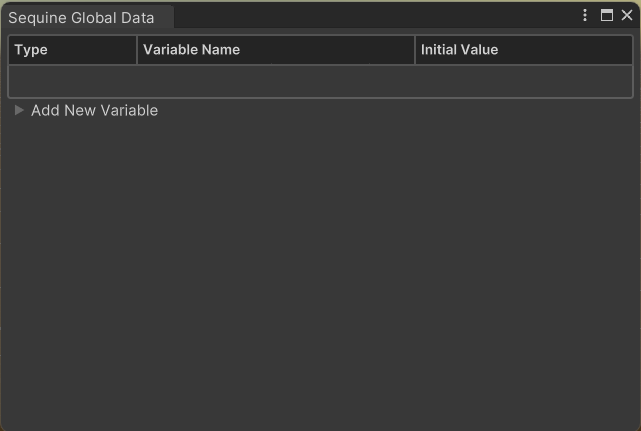
Creating a Global Variable
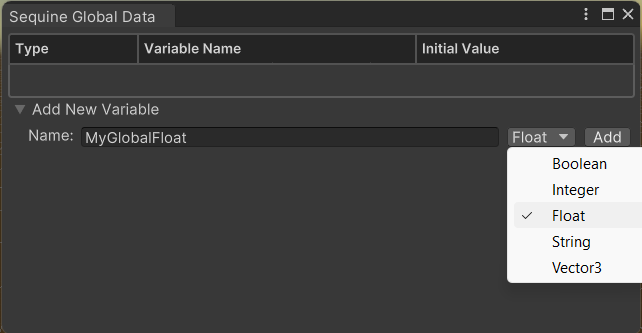
To create a Global Variable, we can click the Add New Variable foldout to open the variable creation menu. We have to specify the variable name and the data type.
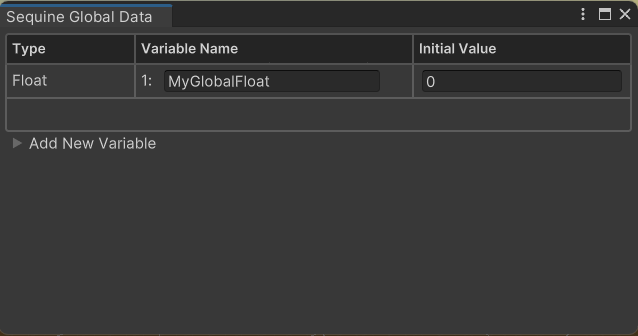
Once Add button is clicked, it will appear on the table, where we can rename the variable and change the initial value.
Using a Global Variable
We can create a Getter or Setter command for a certain Global Variable using create command context menu (right clicking an empty area).
1. Getter
To create a Property Command that gets a Global Variable, right click on the empty area, and choose Property -> Data -> Global Variable.
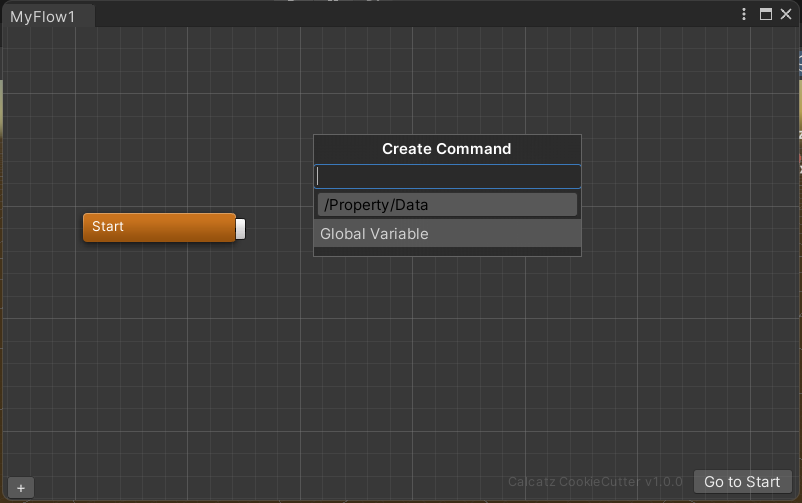
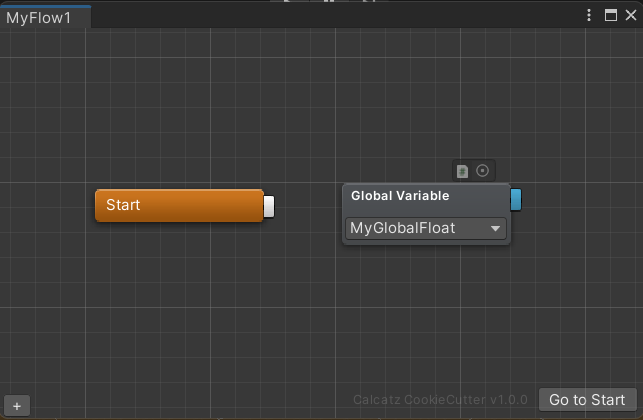
By default, the command will show a blank dropdown. We can click the dropdown, to choose which variable we want it to refer to.
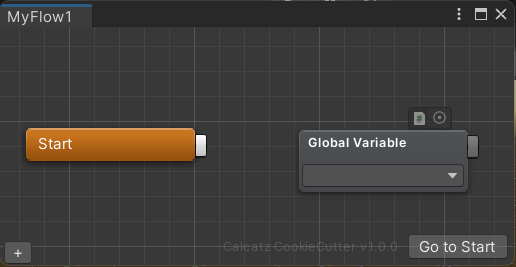
Notice that the out-point's color automatically changes according to what type of data the variable refers to.
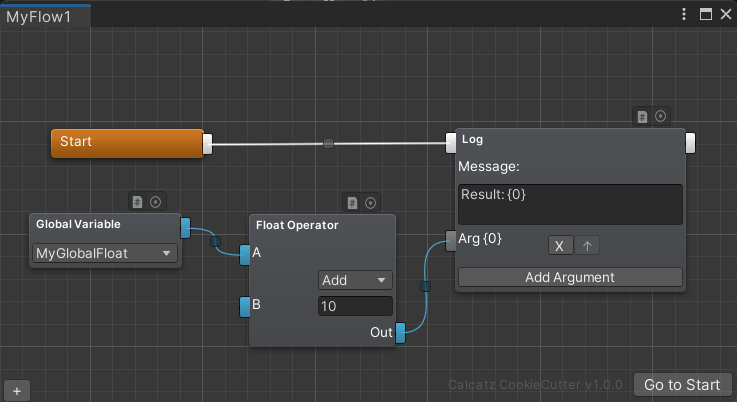
Below is an example on how to print the value to the console.
Getting a Global Variable by Script
You can get a global variable by script using SequineGlobalData class and call GetVariable method, specifying the return type, and the variable ID. The variable ID is the integer that shows up beside the variable name in the Sequine Global Data window.
SequineGlobalData.GetVariable<float>(1);
As of version 1.7.2, you can also get a global variable value using its name.
SequineGlobalData.GetVariable<float>("MyGlobalFloat");
See SequineGlobalData.
2. Setter
To create a Main Command that sets a Global Variable, right click on the empty area, and choose Data -> Set Global Variable.
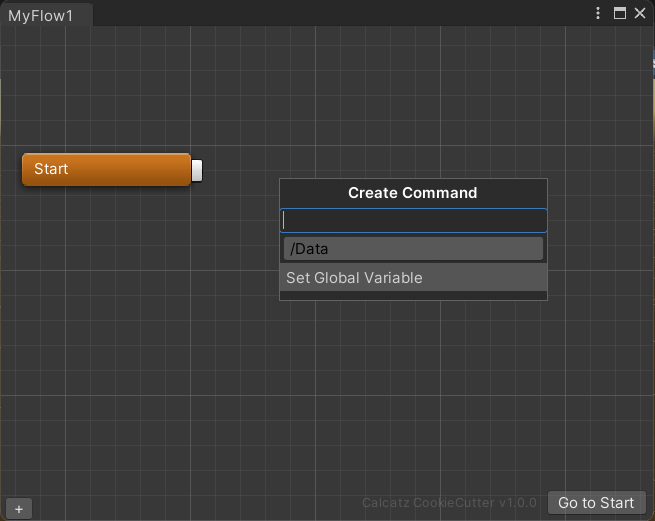
By default, the Set Global Variable command will show a blank dropdown. We can click the dropdown, to choose which variable we want it to refer to.
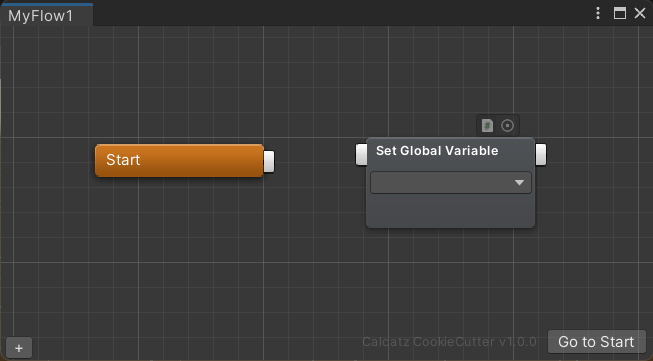
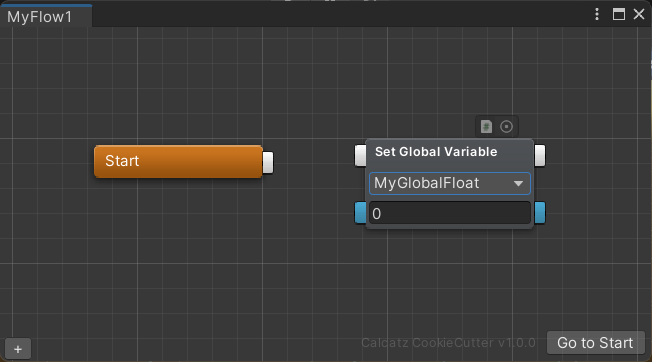
Once we choose a specific variable, it will show its in-point, field, and out-point.
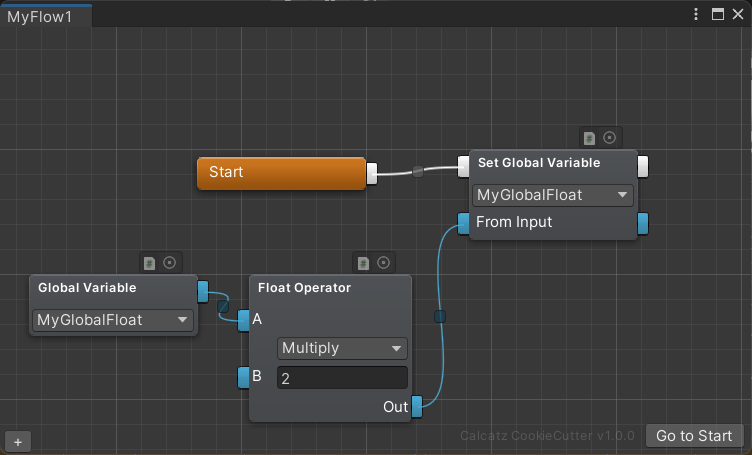
Just like a regular Variable, we can connect the in-point from a certain out-point of another command if we want to set the value dynamically instead of using the float field manually.
Setting a Global Variable by Script
You can set a global variable by script using SequineGlobalData class and call SetVariable method, specifying the return type, the variable ID, and the value to set. The variable ID is the integer that shows up beside the variable name in the Sequine Global Data window.
SequineGlobalData.SetVariable<float>(1, 50f);
As of version 1.7.2, you can also set a global variable value using its name.
SequineGlobalData.SetVariable<float>("MyGlobalFloat", 50f);
See SequineGlobalData.
Serializing Global Data
As mentioned earlier, Global Variables state can be serialized and deserialized during runtime. It works by serializing the data contained in Sequine Global Data object.
Serializing the data is as simple as calling SequineGlobalData.SerializeToBinary() method. While, to deserialize it, we need to call SequineGlobalData.DeserializeFromBinary(bytes).
Here is an example on how to create a DataManager that saves the current states to a file by pressing Ctrl+S, and load the file into current states by pressing Ctrl+L.
using Calcatz.Sequine;
using UnityEngine;
using System.IO;

public class DataManagerExample : MonoBehaviour {

    private void Update() {
        if (Input.GetKey(KeyCode.LeftControl)) {

            if (Input.GetKeyDown(KeyCode.S)) {
                SaveData();
            }

            if (Input.GetKeyDown(KeyCode.L)) {
                LoadData();
            }

        }
    }

    private void SaveData() {
        string filePath = Application.persistentDataPath + "/SaveData.dat";
        byte[] bytes = SequineGlobalData.SerializeToBinary();
        File.WriteAllBytes(filePath, bytes);
        Debug.Log("Saved to " + filePath);
    }

    private void LoadData() {
        string filePath = Application.persistentDataPath + "/SaveData.dat";
        byte[] bytes = File.ReadAllBytes(filePath);
        SequineGlobalData.DeserializeFromBinary(bytes);
        Debug.Log("Loaded from " + filePath);
    }

}