Overview - Sequine Flow
Sequine Flow is a system that executes a set of commands in a defined branchable flow, starting from the Start command.
Interface Overview
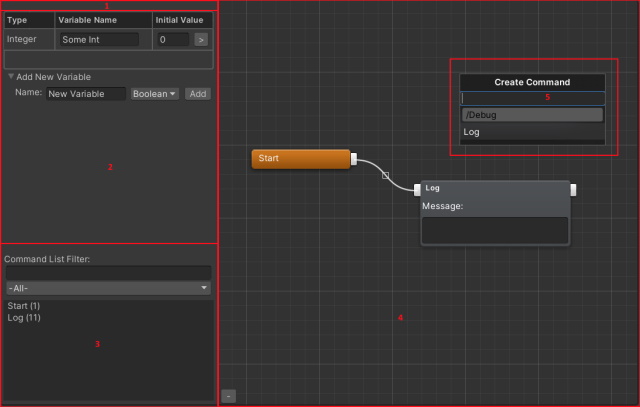
Left Pane
- Local Variables: You can add your local variables used in your flow here.
- Command List: The list of all commands included in the flow. You can filter it by command type or search it with a specific keyword. When you click one of the items, it will bring you to where the command is exactly located in the Command Nodes.
Nodes Area
- Command Nodes: The main area where you define the flow of your commands.
- Create Command Context Menu: Create a new command using this menu. You can open it by right clicking an empty area, or by left-clicking while you have clicked an out-point of a certain command and it will also automatically connect to the in-point of that certain command.
Object Types of Sequine Flow
While Sequine Flow data can be implemented to any kind of Unity Object, here are the types of Sequine Flow object that we already provided:
1. Sequine Flow Asset
Sequine Flow Asset is an asset (a file in your Project window) that carries Sequine Flow data.
To create it, we can open the Assets menu and choose Create -> Sequine -> Sequine Flow Asset.

We can then open the editor by double-clicking the asset.
To execute it, we should create an executor GameObject in the scene first. Open the GameObject menu and choose Create Other -> Sequine -> Sequine Flow Executor.
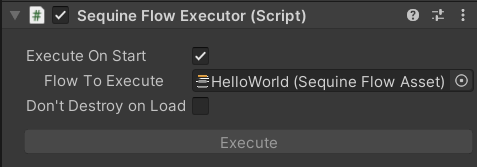
Using C# script, you can then call Execute method from that Sequine Flow Executor component, specifying the Sequine Flow Asset as the parameter. Alternatively, you can simply tick Execute On Start and specify the Flow To Execute, and your flow will be executed immediately on Start without additional C# script.
We can enable Don't Destroy on Load so that it's not destroyed upon loading another scene. You might need this in case you need to use Scene commands and a flow that runs through different scenes.
2. Sequine Flow Clip (Timeline)
Sequine Flow Clip is a timeline clip that carries Sequine Flow data.
Before creating the clip, we have to add a Timeline Command Track to our timeline. With your existing timeline selected in your Timeline window, click the + button -> Calcatz.CookieCutter -> Timeline Command Track.

Create the clip by right clicking on the empty area of the track -> Add Sequine Flow Clip.
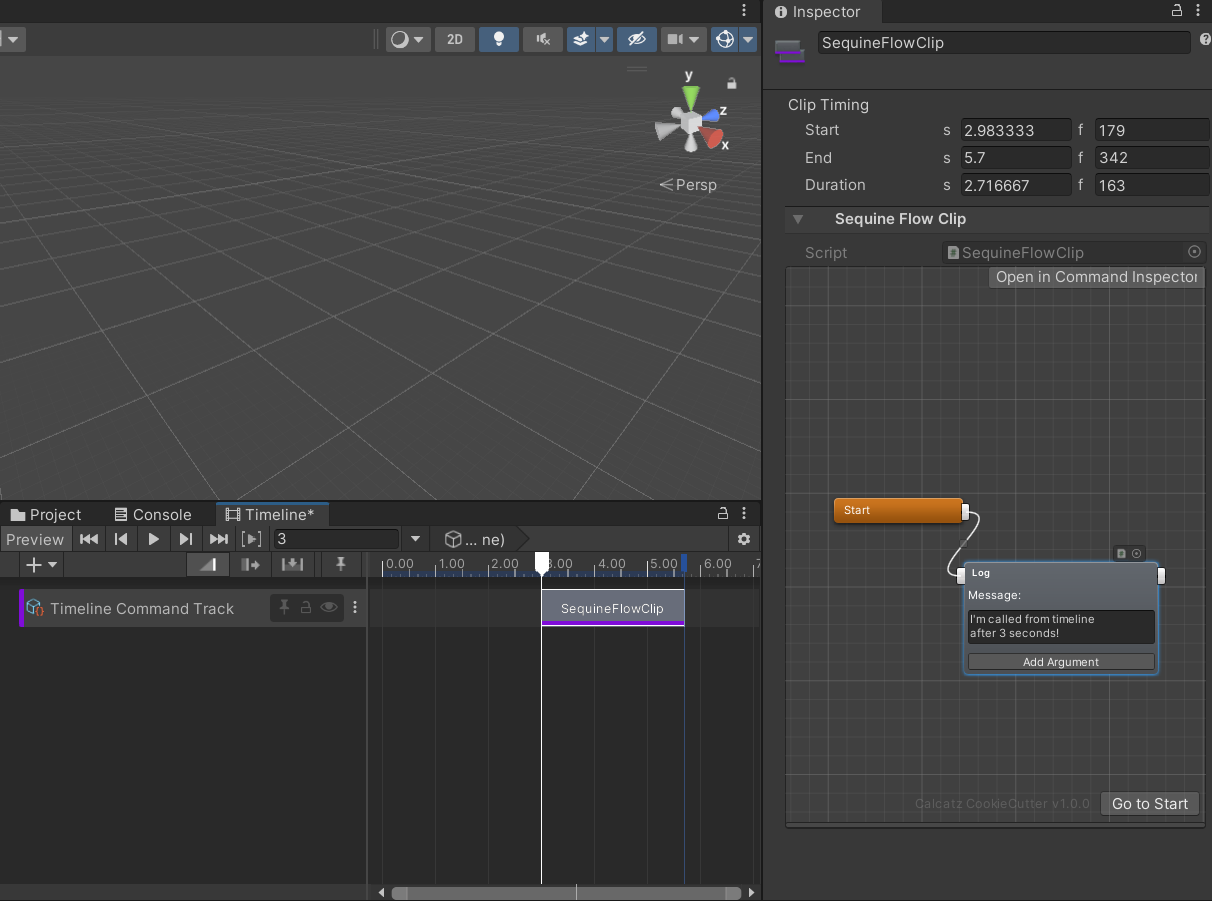
We don't need to create an executor, since the clip is the executor itself. Upon playing the Playable Director, The Sequine Flow will be executed once the time reaches the starting time of the clip.
3. Sequine Flow Component
Sequine Flow Component is a component that carries Sequine Flow data.
To create it, open the GameObject menu and choose Create Other -> Sequine -> Sequine Flow Component.
We can then open the editor by expanding the preview area under the Inspector. If we need a wider view, we can also open it in a Command Inspector window, by pressing the Open in Command Inspector button.
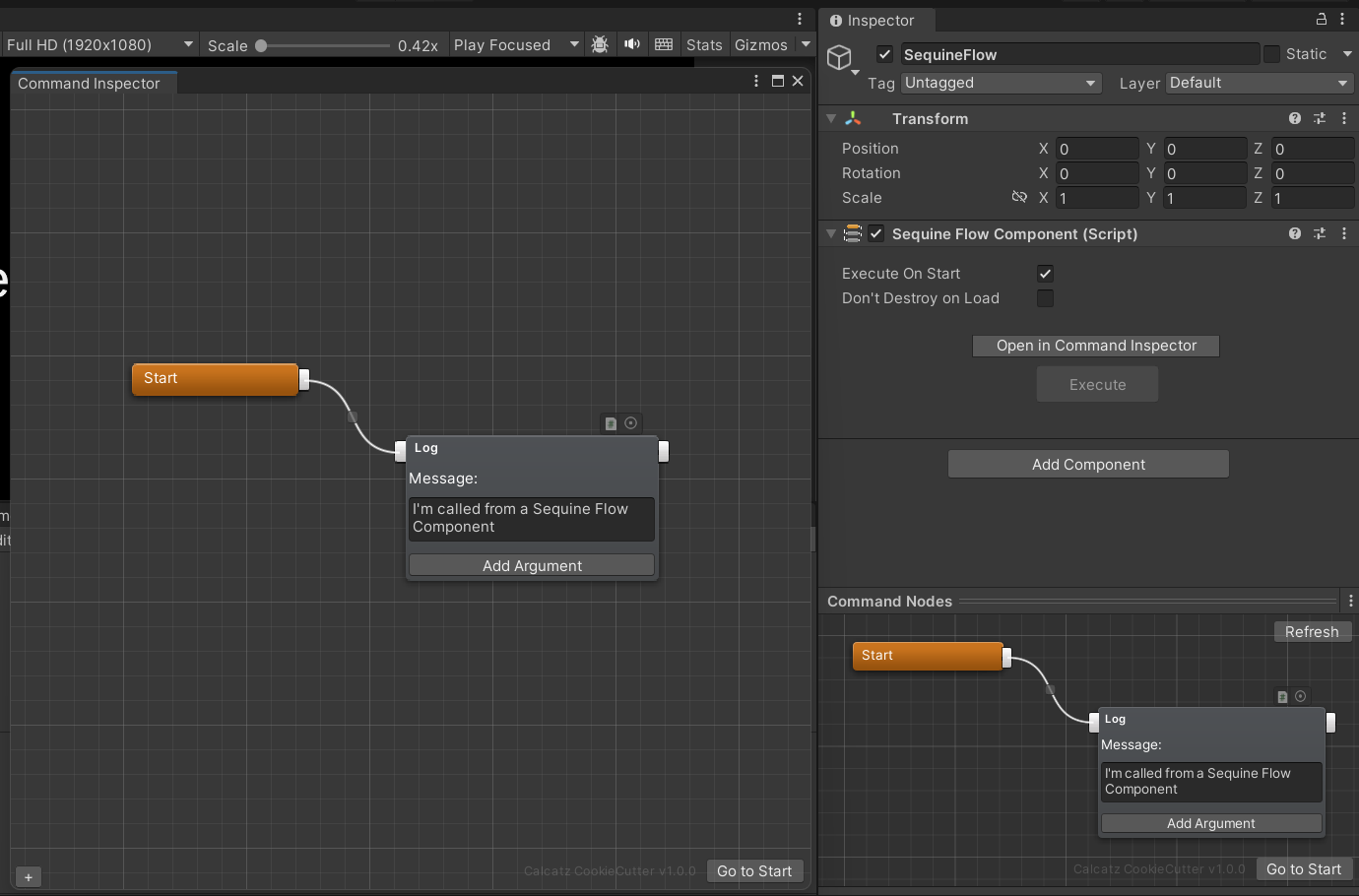
We don't need to create an executor, since Sequine Flow Component is the executor itself.
Using C# script, you can then call Execute method from that Sequine Flow Component. Alternatively, you can simply tick Execute On Start, and it will immediately execute itself on Start without additional C# script.
We can enable Don't Destroy on Load so that it's not destroyed upon loading another scene. You might need this in case you need to use Scene commands and a flow that runs through different scenes.
Sequine uses Odin Serializer to serialize Sequine Flow, which doesn't support nested prefab. So make sure not to use Sequine Flow Component in a nested prefab. This is, however, not the case for Sequine Flow Asset and Sequine Flow Clip.
Additional Notes
Sequine Flow is designed for fast execution with very minimum allocations (even zero most of the time). This implicates that 1 Sequine Flow object can only be executed once at a time. Executing an already running Sequine Flow may trigger unexpected behaviour due to race conditions, for example when an asynchronous command is re-executed when it has not completed. But, if you need multiple instances of the same Sequine Flow object to be executed, then you can alternatively Instantiate the Sequine Flow object and execute it.