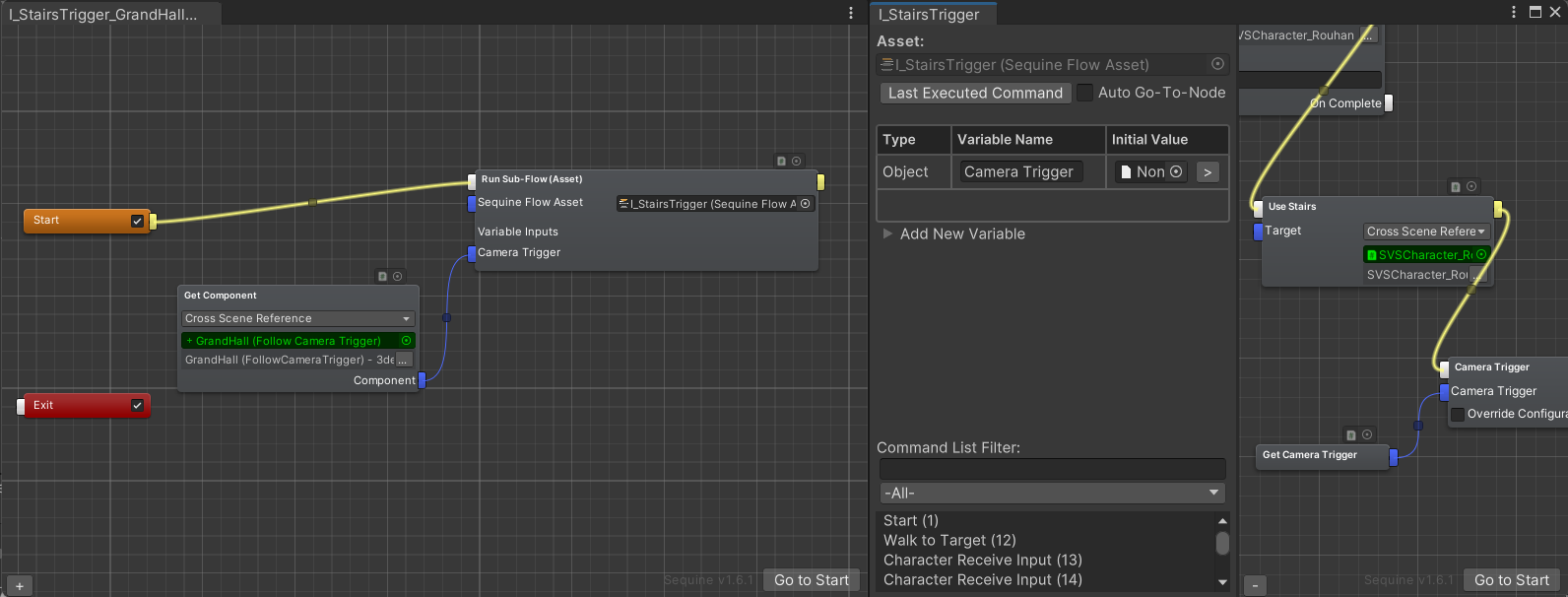
Variables
Variables refer to local variables that can be used in a Sequine Flow object, within the scope of that Sequine Flow object only. It has pretty much the same concept as a variable in a programming language.
Here is the list of supported data types to be used as variables for Sequine Flow:
- Boolean
- Integer
- Float
- String
- Vector3
- UnityEngine.Object
Creating a Variable
Through the left pane, we can click the Add New Variable foldout to open the variable creation menu. We have to specify the variable name and the data type.
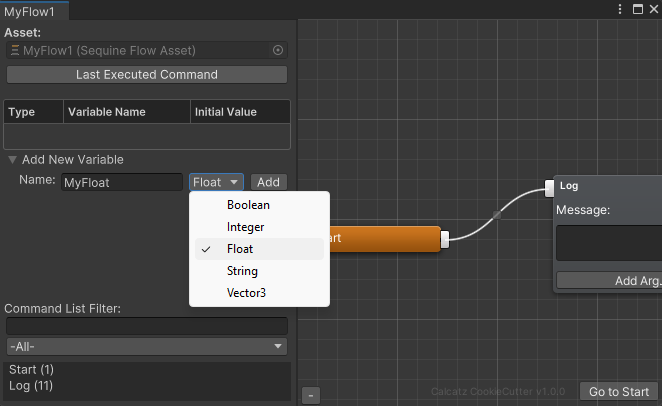
Once Add button is clicked, it will appear on the table, where we can rename the variable and change the initial value.
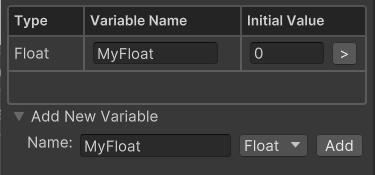
Using a Variable
A variable's value can be modified during runtime. To utilize and manipulate the variable's value, there are 2 commands that can be created, not by using the create command context menu, but by clicking the arrow button of each variable row on the table.
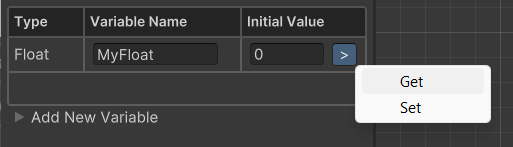
1. Getter
By choosing Get, a getter Property Command will be created, and can be connected to other commands as an input property.
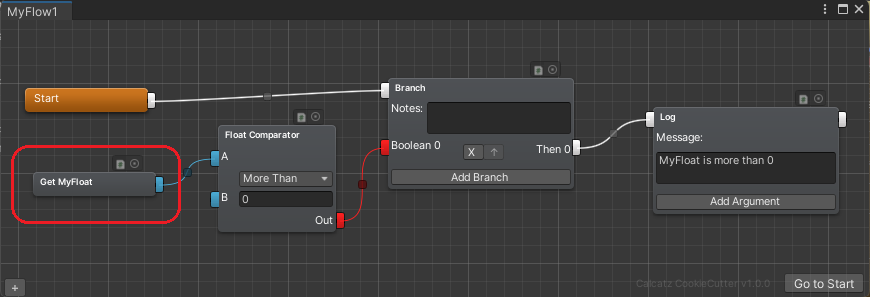
Getting a Variable by Script
using Calcatz.Sequine;
using UnityEngine;

public class VariableExample : MonoBehaviour {

    public SequineFlowComponent sequineFlow;

    private void Start() {
        float myFloat = sequineFlow.GetVariable<float>(3);
        Debug.Log("The float value in variable with ID 3 is: " + myFloat);
    }

}
As of version 1.7.2, you can also get a variable value using variable name.
...
        float myFloat = sequineFlow.GetVariable<float>("MyFloat");
...
2. Setter
By choosing Set, a setter Main Command will be created, and can be connected to other commands as an input property, as well as being connected through the Main Connection (the white one). When executed, the variable's value will be changed into whatever value is put. If the in-point of the setter is left unconnected, then a field will be shown for the user to input the value manually.

We can of course set the value using an output of another command as well.
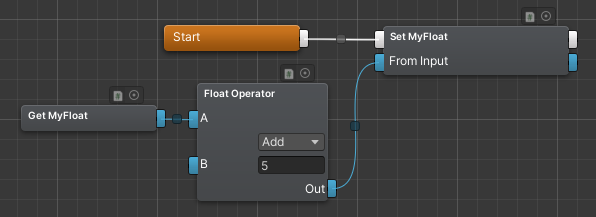
Notice that it also has a property out-point. It behaves the same way as Getter command, except it returns the final value after the Set operation has been applied.
Setting a Variable by Script
using Calcatz.Sequine;
using UnityEngine;

public class VariableExample : MonoBehaviour {

    public SequineFlowComponent sequineFlow;

    private void Start() {
        sequineFlow.SetVariable<float>(3, 50f);
    }

}
As of version 1.7.2, you can also set a variable value using variable name.
...
        sequineFlow.SetVariable<float>("MyFloat", 50f);
...
Passing Variables to a Sub-Flow
As of version 1.7.0, when executing a Sequine Flow using a Run Sub-Flow command, we can pass input values to the Variables of the specified Sequine Flow. We can think of it just like passing parameters to a function in programming.