Animation Layers
As in Unity's Animator Controller, we can also add layers to Sequine Player. If you are not familiar with Animator Controller's layers, here is how it looks like.
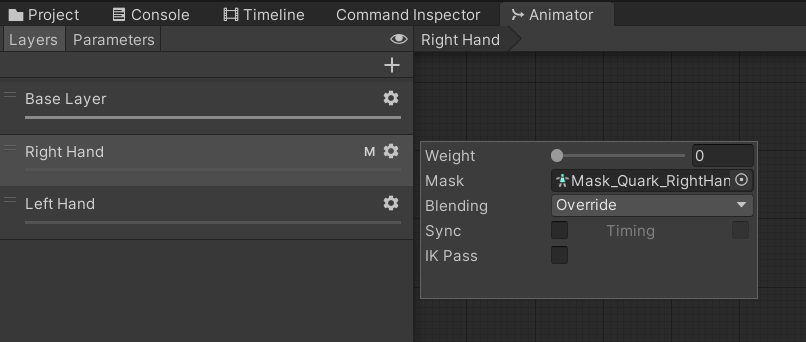
Using Layers we can manage animations for different body parts, to blend them or even override them.
In Sequine Player we can click on Layers dropdown if we want to add more layers.
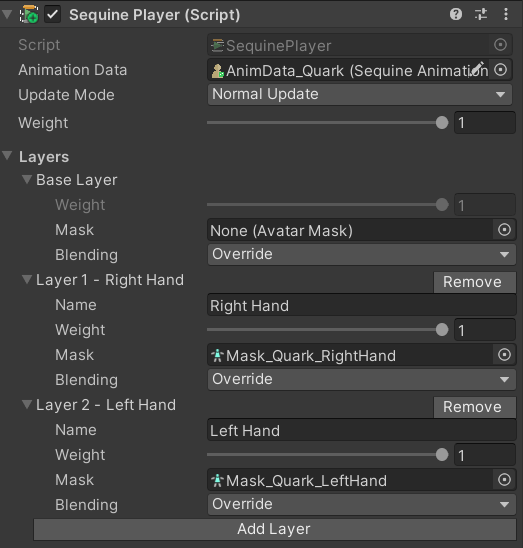
Properties of each Layer:
- Name: Name of the layer.
- Weight: Weight to apply to the layer. If the weight is 1, it will be fully applied. If the weight is 0, it is not applied at all. We can use the value between 0 and 1 to blend it with the previous layers calculation.
- Mask: This is where we specify the body parts for this layer. You can see Avatar Mask if you are not familiar yet.
- Blending: This specifies how the animation is applied.
- Override: Use the animation on this layer, replacing the animation on previous layers.
- Additive: Add the animation on this layer on top of the animation from previous layers. For additive blending to be successful, the animation on the additive layer must contain the same properties as the previous layers.
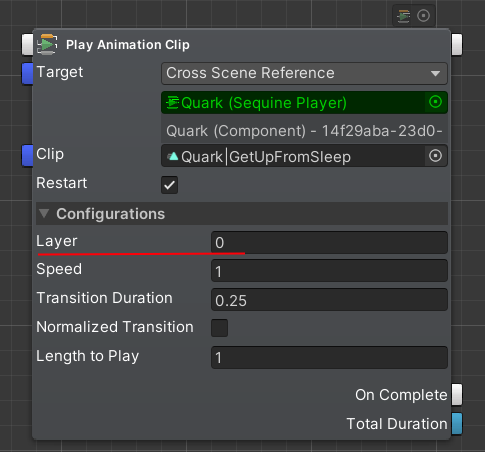
We can play an animation on certain layer by specifying the Index of the layer. When we play an animation without specifying the layer, then Index 0 will be used by default, which is the Base Layer.
Playing Animation on Certain Layer by Script
To play an animation on certain layer, we can use the previous PlayAnimationClip or PlayAction method, and simply overload it by putting the layer's Index as the first parameter. Here is an example:
using UnityEngine;
using Calcatz.Sequine;

public class PlayOnStart : MonoBehaviour {

    public SequinePlayer sequinePlayer;

    public int layer = 2;
    public AnimationClip clipToPlay;

    void Start() {
        sequinePlayer.PlayAnimationClip(layer, clipToPlay, SequinePlayer.defaultAnimationConfig);
    }

}
Playing Animation on Certain Layer in Sequine Flow
If you've been through Playing Animation with Configurations section, it might be quite obvious on how to play an animation on certain layer. We only have to specify the layer index on the Layer field inside the Configurations dropdown.