Managing Animation Clip References
What we learned previously is that we can play an animation by directly specifying the animation clip. But here's another case: We have many Play Animation Clip commands placed in our flow, and some of them plays the same animation clip, let's say, Clip A. But the problem comes when we want to change the animation clip to play. We want them to play Clip B instead of Clip A. It would be tiring to make changes to every command.
Here is where we make use of Animation Data asset, not only as a Cross-Scene Binder, but also to manage action clip references.
Create a New Animation Data
Open the Assets menu and choose Create -> Sequine -> Animation Data. Name the new file to a name that represents your object or character in Scene.

In the Inspector, we can see that Animation Data has a field called Action Clips. We use the term Action Clip here to distinguish between ordinary clip, where Action Clip is referred using an Id instead of referencing directly to the animation clip asset.
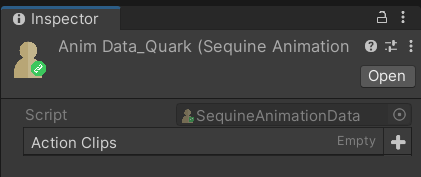
Try to add some new items, and there will be 2 fields on each item:
- Id: The auto-generated integer ID that will be used to refer the animation clip. It is auto-generated by automatically incrementing when we add a new item.
- Clip: The referred animation clip.
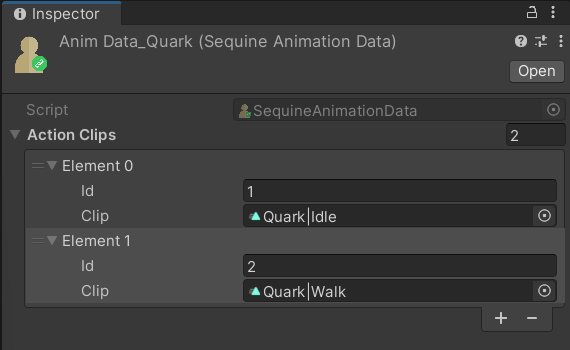
When Action Clips are used either in script or Sequine Flow, we play it by specifying the Id instead of the animation clip asset. With this in mind, now if we want to change a certain clip, we can simply change the Clip inside the Animation Data, instead of dealing with the mess of changing the specified clip in all commands.
Assign the Animation Data
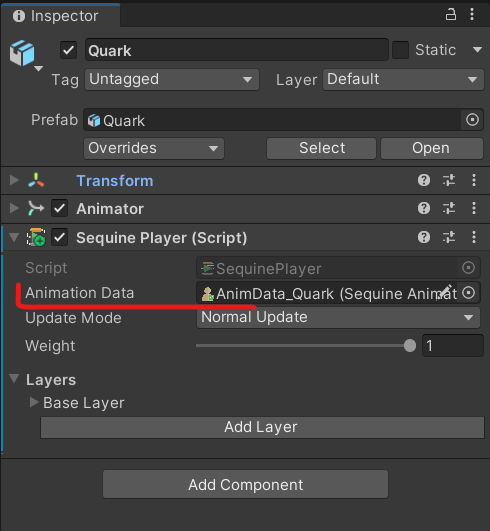
After the Animation Data asset has been set up, we assign that asset to a Sequine Player component.
Playing Action Clip by Script
Create a New Script
To play an Action Clip, instead of using PlayAnimationClip method, we use PlayAction method instead.
using UnityEngine;
using Calcatz.Sequine;

public class PlayOnStart : MonoBehaviour {

    public SequinePlayer sequinePlayer;

    public int idToPlay = 1;

    void Start() {
        sequinePlayer.PlayAction(idToPlay, SequinePlayer.defaultAnimationConfig);
    }

}
Using the PlayAction method, it expects you to fill at least 2 parameters:
- The Id of the Action Clip
- Animation Config: You can set the clip configurations such as the speed, transition duration, etc.
The method is basically the same with PlayAnimationClip method, except for the first parameter, where instead of specifying an AnimationClip object, we specify an integer Id of the action clip.
Playing Action Clip in Sequine Flow
To play an Action Clip inside a Sequine Flow, instead of using Play Animation Clip command, we use Play Action Animation command.
Create a Play Action Animation Command
Right click on the empty area, and choose Animation -> Clip Control -> Play Action Animation.
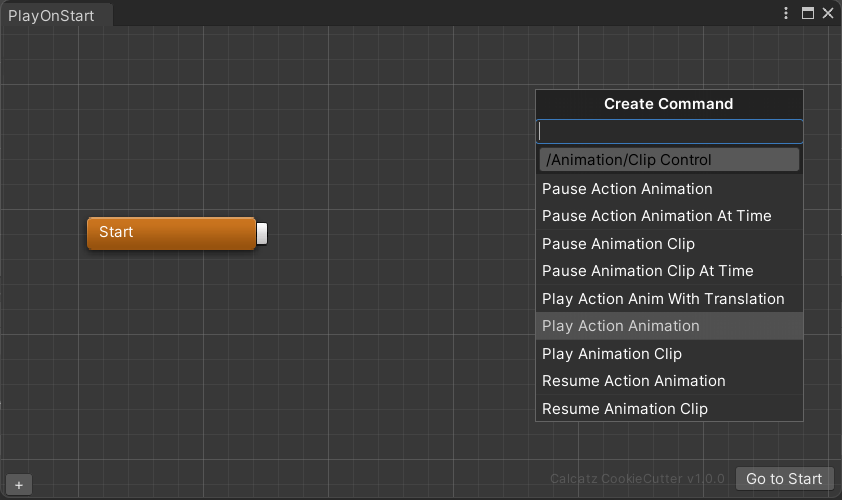
Notice that it looks pretty much the same with Play Animation Clip command, except that the Clip field is now becoming an Action dropdown.
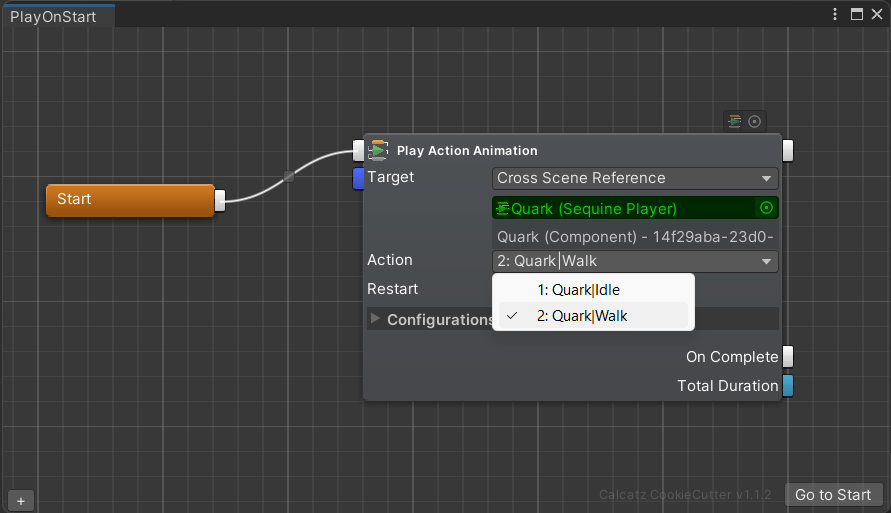
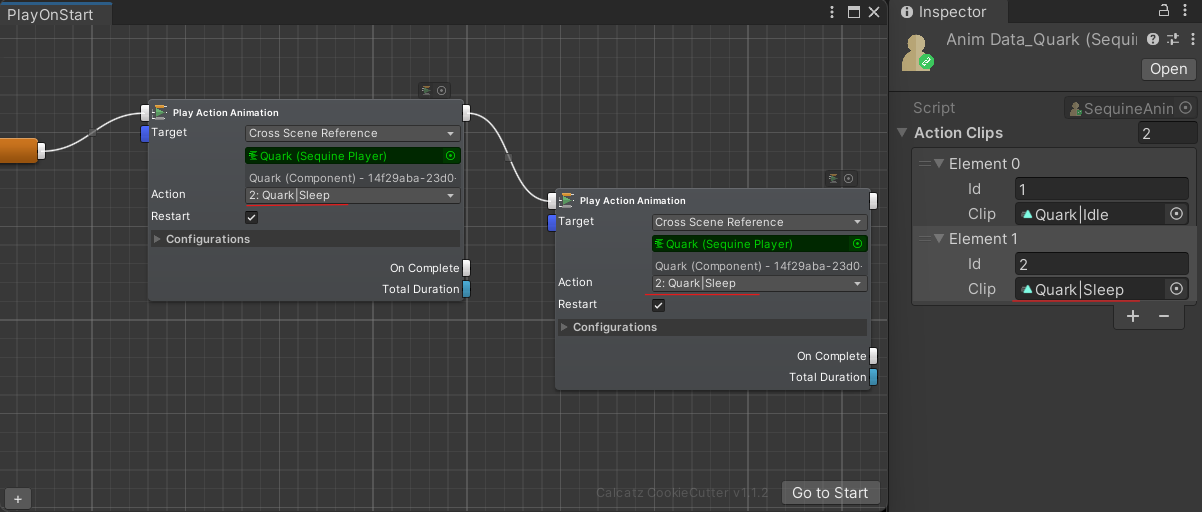
Upon changing the referenced Clip inside the Animation Data, all the commands referencing that Action Clip of that Id will also refer to the newly specified Clip. For instance in this case, we changed the action at Id 2 from Walk clip to Sleep clip.
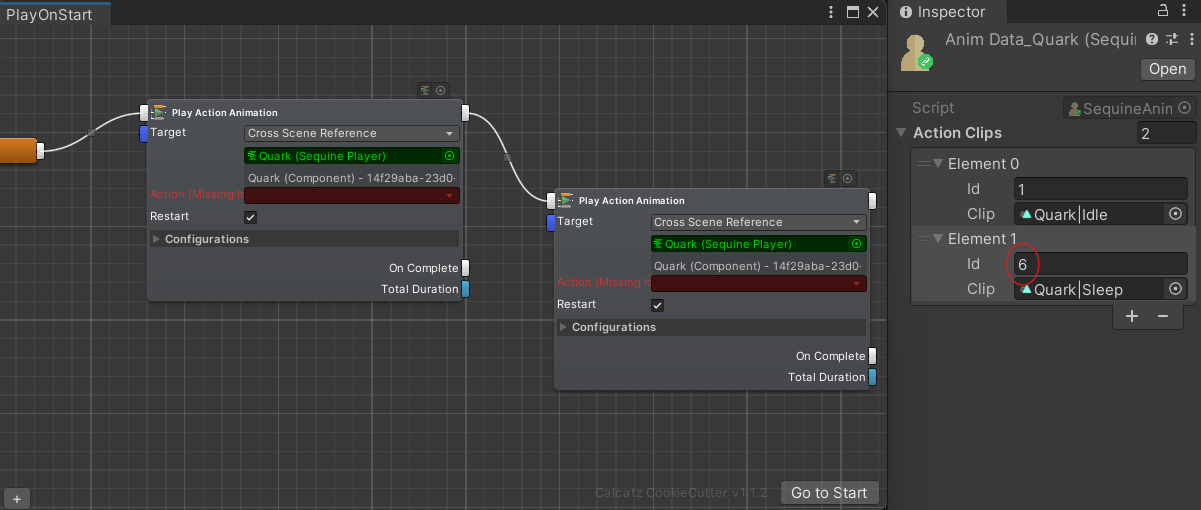
You can try to change the Id of an existing Action Clip. In the example below, the Id which was previously 2, is changed to 6. Then you will see that all the commands that referenced Action Clip with Id 2 are now turning red, which indicates missing Action Clip reference.
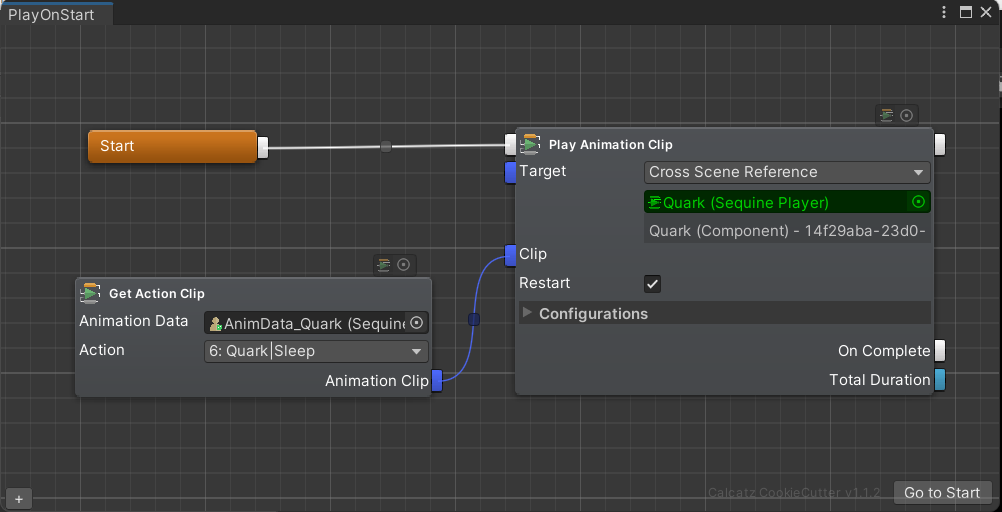
Since version 1.3.0, We can also play an action animation by getting the animation clip of the Action first using the Get Action Clip command, and then pass it as the input of the Play Animation Clip command's Clip in-point.