Playing Animation with Configurations
Upon playing animation clip, when the Sequine Player is currently playing an existing animation clip, then we can also put some configuration to define the transition.
Here are the values of Animation Config that we can adjust:
- Speed: The speed of the animation clip
- Transition Duration: The duration of the transition. The unit depends on whether we set Normalized Transition to true or not. If it's set to false, then the unit is in seconds. Otherwise, the duration will be the percentaged duration of to the clip's total duration.
- Normalized Transition: Whether the Transition Duration uses the actual seconds or normalized from the clip's duration.
- Length to Play: This determines when to invoke the On Complete method. If the value is 2, it means that On Complete will be called after the animation clip has finished twice.
Configuring by C# Script
In Quick Start, we put SequinePlayer.defaultAnimationConfig as the argument when we call the PlayAnimationClip method. The default animation configuration has values as follows:
- Speed: 1
- Transition Duration: 0.25 seconds
- Normalized Transition: false
- Length to Play: 1
To manually define the values, we can create a new AnimationConfig, and pass it as the argument. Here is an example:
using UnityEngine;
using Calcatz.Sequine;

public class PlayOnStart : MonoBehaviour {

    public SequinePlayer sequinePlayer;

    public AnimationClip clipToPlay1;
    public AnimationClip clipToPlay2;

    void Start() {
        sequinePlayer.PlayAnimationClip(clipToPlay1, new AnimationConfig() {
            speed = 2,
            transitionDuration = 0.5f,
            normalizedTransition = false,
            lengthToPlay = 2
        }, ()=> {   //On Complete
            //Play clipToPlay2 after clipToPlay1 has finished playing twice.
            sequinePlayer.PlayAnimationClip(clipToPlay2, SequinePlayer.defaultAnimationConfig);
        });
    }

}
Configuring in Sequine Flow
Setting up the Animation Config in Sequine Flow is pretty straightforward, since they are clearly exposed inside the Play Animation Clip command node itself, by clicking the Configurations foldout.
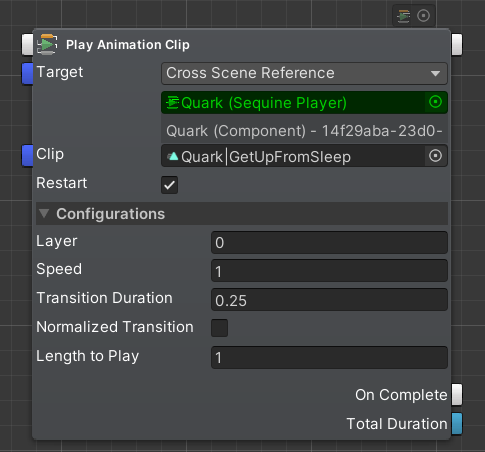
Now the thing that might confuse you is that it has 2 Main (white) out-points. The one at the top, and the one at the bottom:
- Top Main Out-Point: This is the default immediate Exit, meaning that once this command is executed, it will proceed to the next command pointed by this out-point without waiting for the animation clip to finish first.
- Bottom Main Out-Point (On Complete): This will synchronously wait for the animation to finish its Length to Play. After that, it will proceed to execute the command pointed by this out-point.
There is also Layer field which we will cover on Animation Layers section.